
Login to your O365 Portal via O365.autismlearningpartners.com
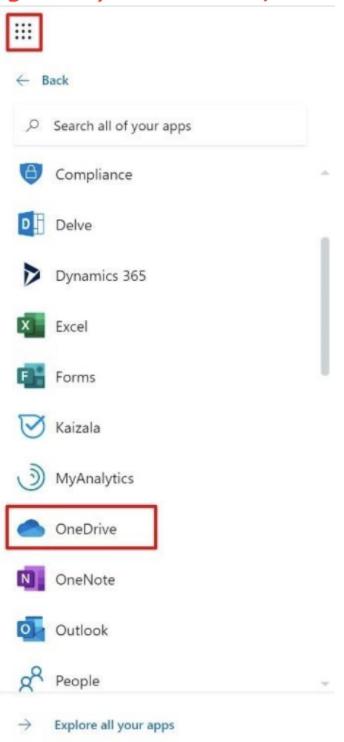
After logging in to the O365 web portal located at O365.autismlearningpartners.com, access the app list from the top right-hand corner and select OneDrive from the menu (Please note: This is an Admin view and has many more applications showing than you will have)
You will now be in your OneDrive Web Application and be able to view any saved documents you have stored. (Please note ALL documents are by default private and only viewable by you and IT Admin)
To upload documents, click “Upload” located at the top of page and select either File or Folder. For the ZDrive migration, you will most likely select Folder. This window will populate on your screen:

Find the Folders or Files you need to upload to OneDrive and select them.
Once you are done selecting the Folder or Files you need to upload, click “Open” at the bottom right of the window. Please note the files you select will be highlighted.

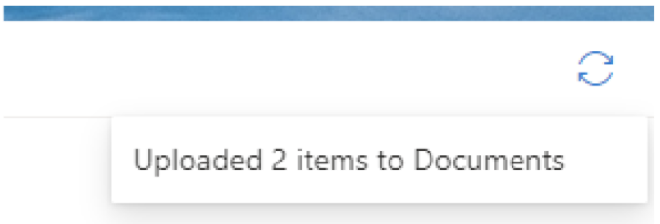
Once you click open, an alert will populate stating that it is currently uploading the files or folders you selected.
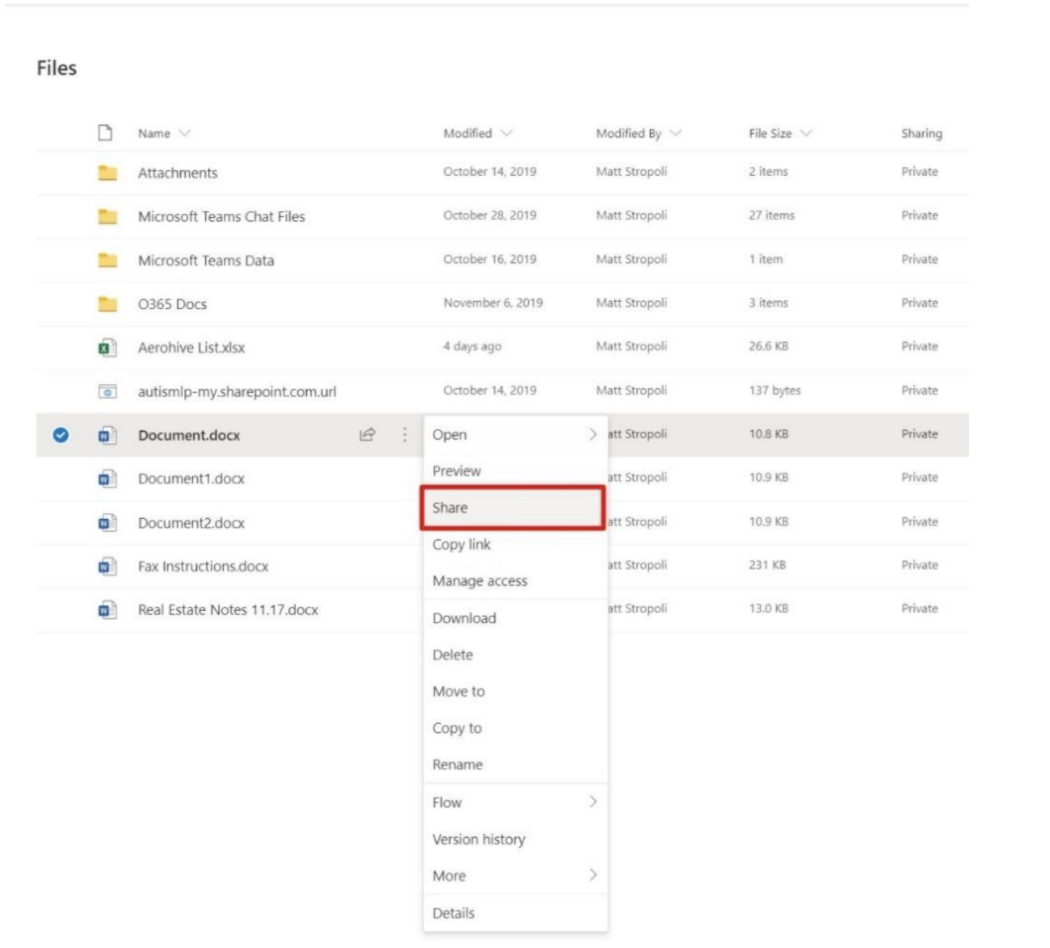
To make a document viewable or even editable by others select a document and click the 3 dots to the right of the title and select “Share”
The next menu that comes up will allow you to choose the settings you would like for the sharing of the document. By default, it is set to “Anyone with the link can edit” which means any email address you enter to send the document to will have edit access. You also have the option to copy the link to send in an instant message or a larger more comprehensive email.
If you would like to have better control of access you can click the arrow next to “Anyone with the link can edit” and choose the level of security for the document you would like, as well as turn off editing and making it view only. See below for the full menu of sharing settings.


If you require more of a visual aid, please use this link. This will take you to a video tutorial on how to use OneDrive.
https://autismlp.sharepoint.com/:v:/s/ALPIT/EdKMfBIWWU5Arl8eaDvsjcB6P5bLxs3wuUWmBhUzUzI7A?e=LBw4U9
If you have any additional questions about OneDrive and its functions or run into any errors, please reach out to O365Help@autismlearningpartners.com and begin a ticket for assistance.
Comments
0 comments
Article is closed for comments.